
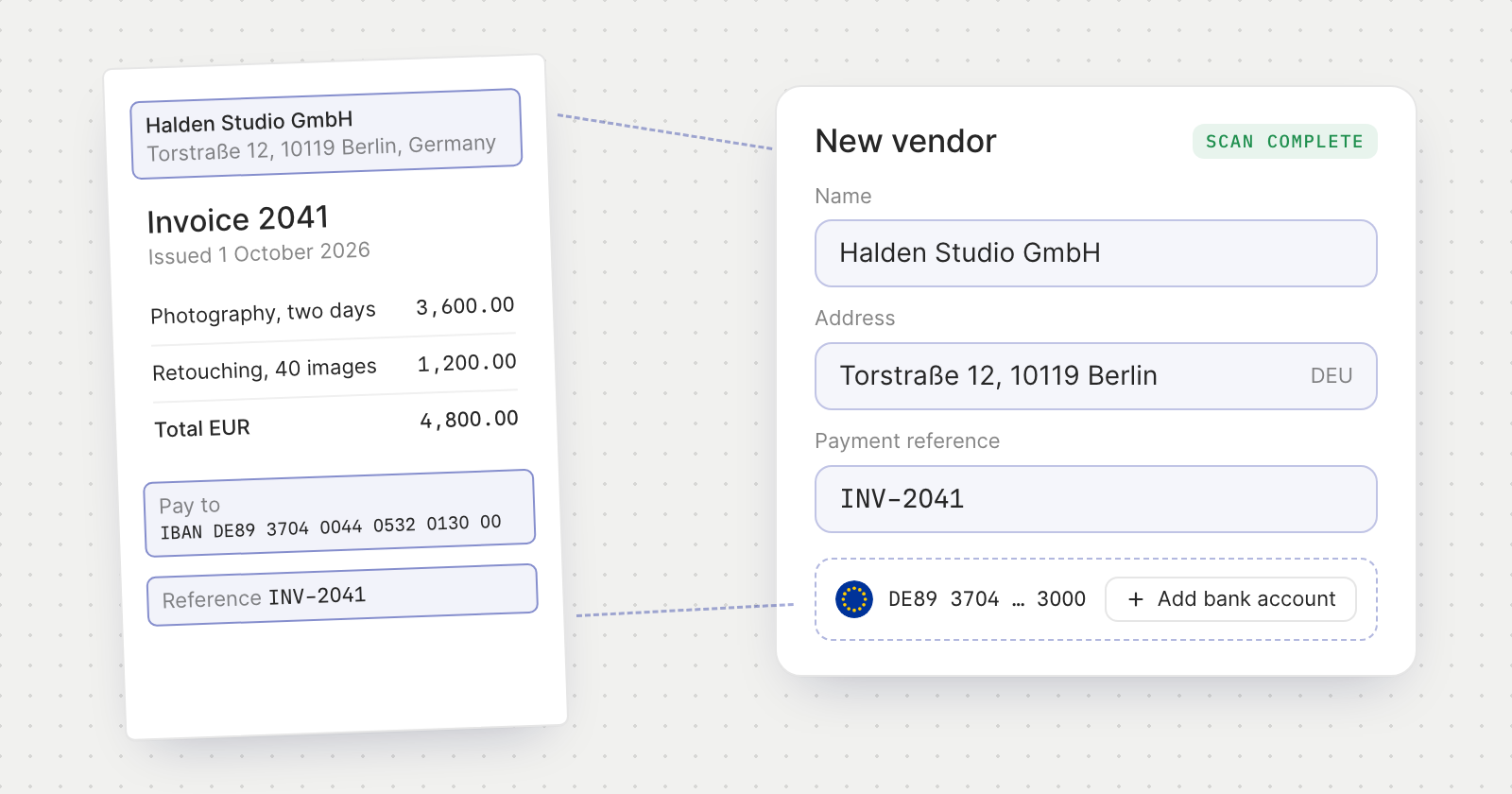
New vendors start from the invoice
- Create vendor opens the vendor form filled in with the name and address printed on the invoice.
- Payment details go into notes. What the invoice says about how to pay is copied into the new vendor's Notes, with any detail that could not be verified marked as such.
- Vendors have notes. Read and edit them on the vendor's page, and keep them with Save notes.
Accounts from the invoice
- Add an account in one step. Once the bill has its vendor, each euro IBAN, US account and routing number, or wallet the invoice names that passes its checks and isn't saved on the vendor yet gets an Add bank account or Add wallet button. It opens the usual form, already filled in. Nothing is saved until you confirm.
- Saved accounts are picked for you. If the invoice names an account already saved on the vendor, it becomes the bill's destination, unless you have already chosen one.
- Warnings before you pay. If the invoice asks for payment to an account other than those saved on the vendor, or its payment details fail their checks, the bill asks you to confirm them with the vendor before paying.
Payment reference
Bills now have a Payment reference field. The scan fills it from the invoice, and Pay bill uses it as the payment's reference. When it is empty, the invoice number is used instead.
Good to know
- Wallets are offered only on networks your company can pay out on.
- Creating a vendor or adding an account from the invoice needs permission to manage vendors.
- You can still edit every field the scan filled in, and choose a different vendor or destination.