
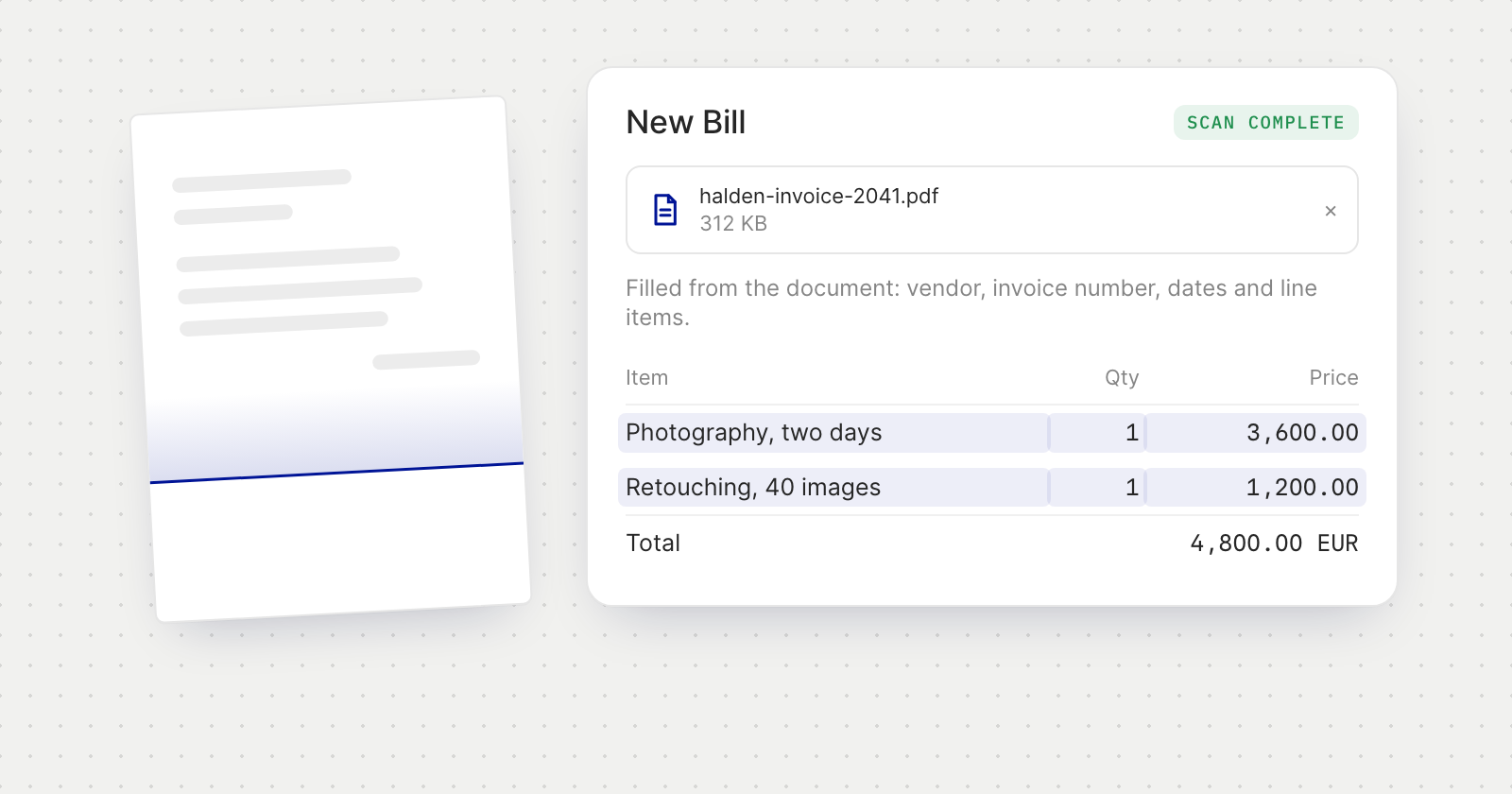
How it works
- Upload the invoice. Pick a file under Select invoices to upload in the New Bill menu, or use Upload invoice on a bill you are writing. One PDF, JPG, JPEG or PNG, up to 10 MB.
- The scan runs while you work. The panel shows Scanning invoice…. You can keep typing, Pause the scan, or choose Scan / check again later.
- The form fills itself in. The scan writes the invoice number, invoice and due dates, currency, line items, tax and discount. An invoice that shows only a total becomes a single line for that total.
What the scan changes
- Empty fields are filled. After Scan complete, one line lists what the scan wrote.
- Typed values that differ are replaced. The invoice is treated as the record. Replaced fields and line items stay highlighted in the form until you edit them, and the status line names them.
- Values that already match are left alone.
- The vendor. If the vendor is already saved, choose Use saved vendor. If not, Create vendor opens the vendor form filled in from the invoice and selects the new vendor on the bill.
Good to know
- The scan writes the form once, when you upload. A saved bill you open later is not rewritten.
- If the scan finds nothing it can use, or fails, the invoice stays attached and you can enter the details yourself or scan again.
- Uploading and scanning an invoice need permission to create bills, and creating a vendor from it needs permission to manage vendors.