
Signing in
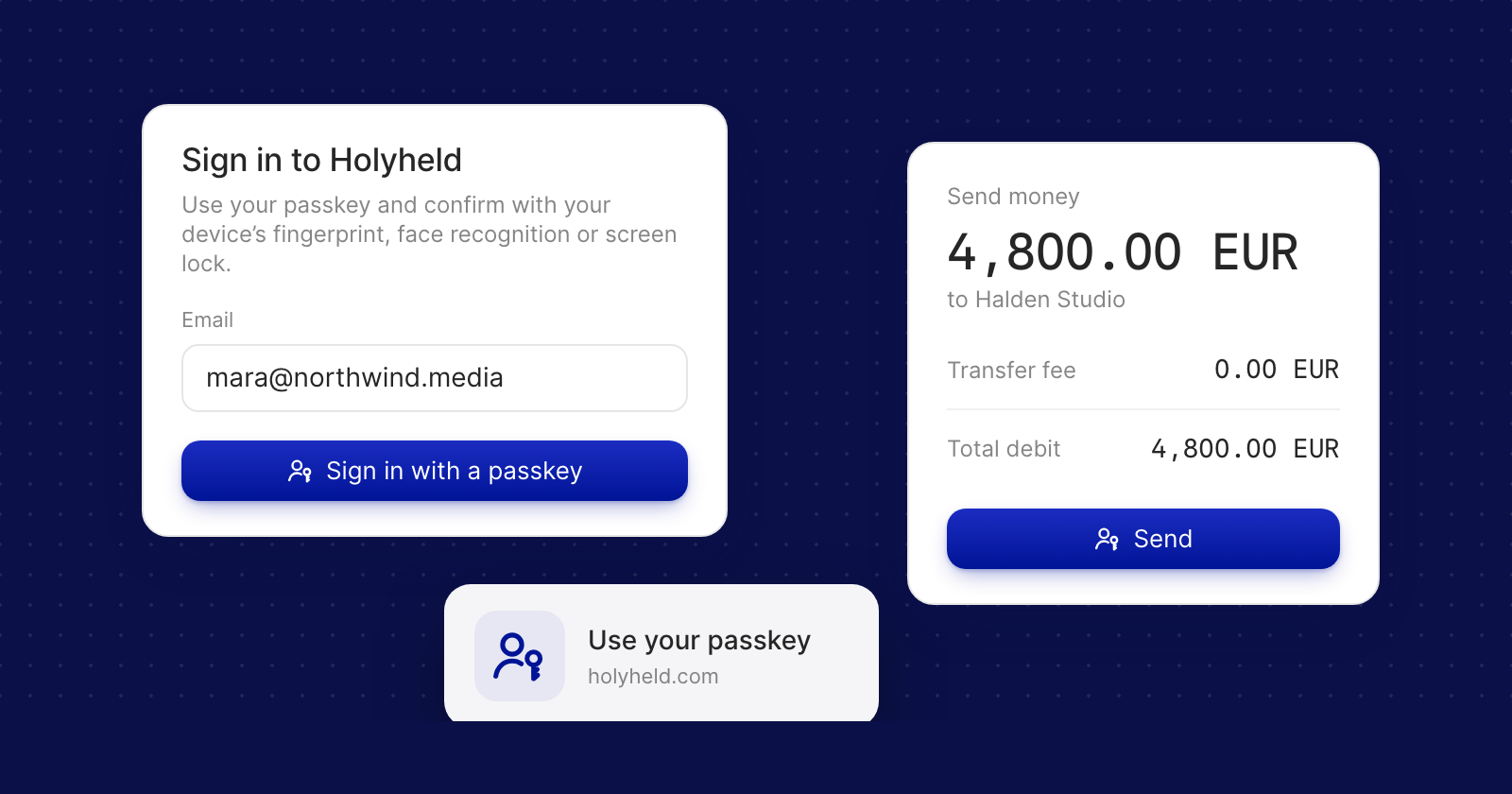
- Email first. Enter the email address on your account, choose Sign in with a passkey and confirm on your device.
- Set up once. When you set up your login, you create a passkey and a six-digit passcode. The passcode approves payments and other sensitive actions.
- Another way in. If your passkey is not working on the device in front of you, choose Having issues? Recover access, then Sign in with my phone this time. Holyheld texts a code to your verified phone, then asks for your passcode. Nothing on your account changes.
Approving payments
- One review, one confirmation. When you send money, move money between your accounts with Internal Transfer, or approve a payment a team member requested, Holyheld asks for your passkey as soon as you confirm on the review screen, then for your passcode. There is no second summary to check.
- Cancel and start again. If you cancel the confirmation, or it does not go through, the payment closes rather than staying half-finished on screen. Starting it again shows the current rate and balance.
When you step away
An idle session locks. Holyheld shows Sign back in with your name on it: select your name to Unlock with a passkey, or choose Sign out.
Good to know
- Manage your passkeys in Account Settings, under Security. Name a new passkey after the device that keeps it. Adding or removing one asks for a passkey and your passcode, and you sign in again afterwards.
- Keep at least one. Holyheld asks you to add another passkey before you remove your last.
- Lost your passkey? You can replace it yourself from the sign-in screen, with your verified phone and your passcode.
- Browser support. If a browser cannot use passkeys, Holyheld says so, and you can sign in on another device.