
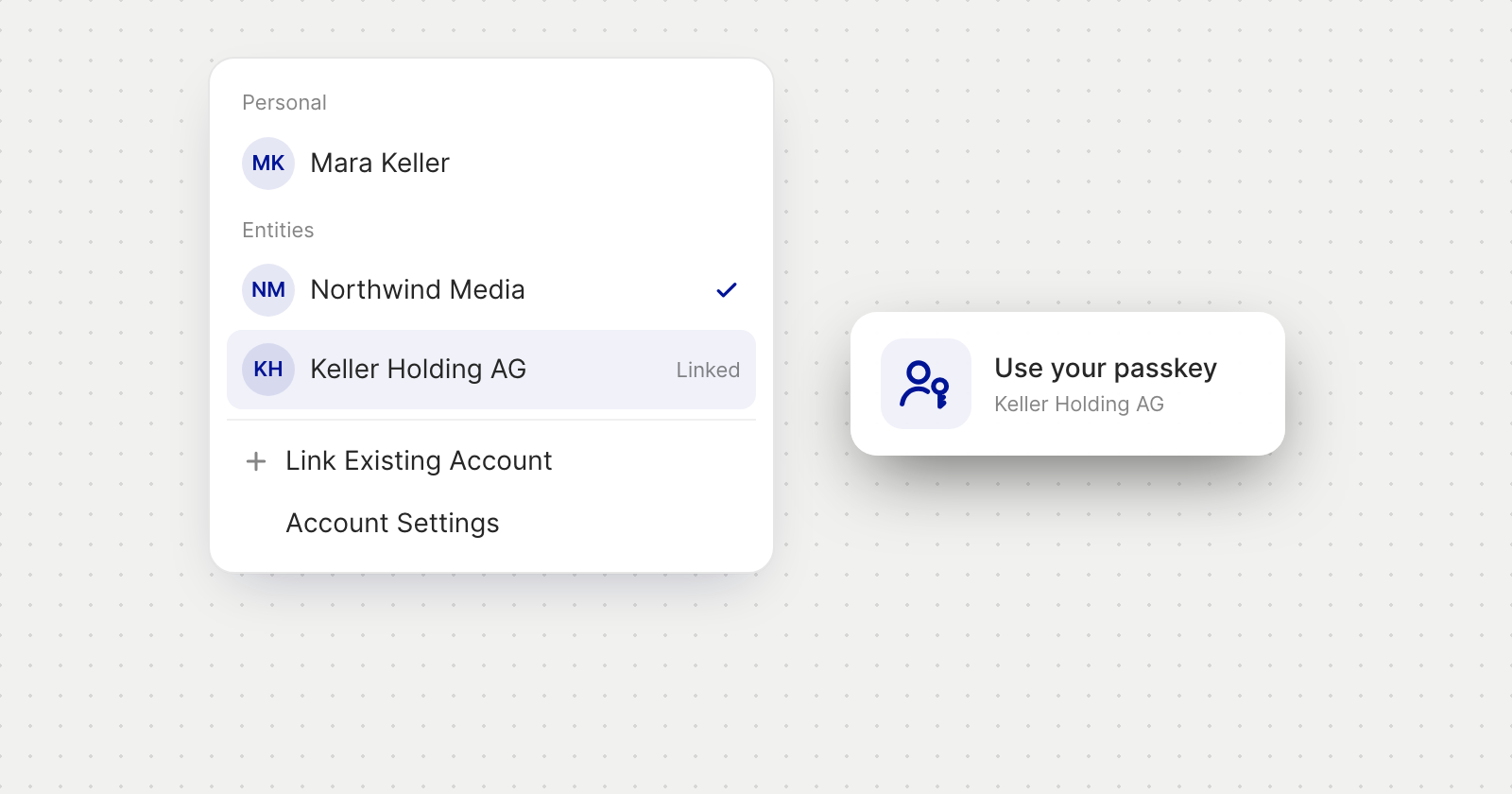
Link a login
- Open the account menu by selecting your name, then choose Link Existing Account.
- Sign in to the other login once. Enter the email address you sign in with to that login, choose Continue with passkey and confirm with that login's passkey. Once the logins are linked, you are signed in to the other one.
Switch between them
- One menu. The linked login's accounts appear in the account menu beside yours, under Personal and Entities. A tick marks the account you are in.
- A passkey to switch. Choosing an account that belongs to another login asks for that login's passkey, then opens the account.
- Log Out keeps the links. Your linked logins are still there the next time you sign in.
Manage your links
In Account Settings, under Security, Linked logins lists your other logins with how many accounts each has. Unlink takes a login out of your account menu, and your login out of its menu. You can link it again at any time.
Good to know
- Nothing is shared or merged. Each login keeps its own passkeys, passcode, team and balances.
- Both logins are told when they are linked or unlinked.
- A passkey is needed. A login without a passkey can't be linked. Sign in to it directly and add one first.
- There is a limit on how many logins can be linked. When you reach it, unlink one before linking another.