
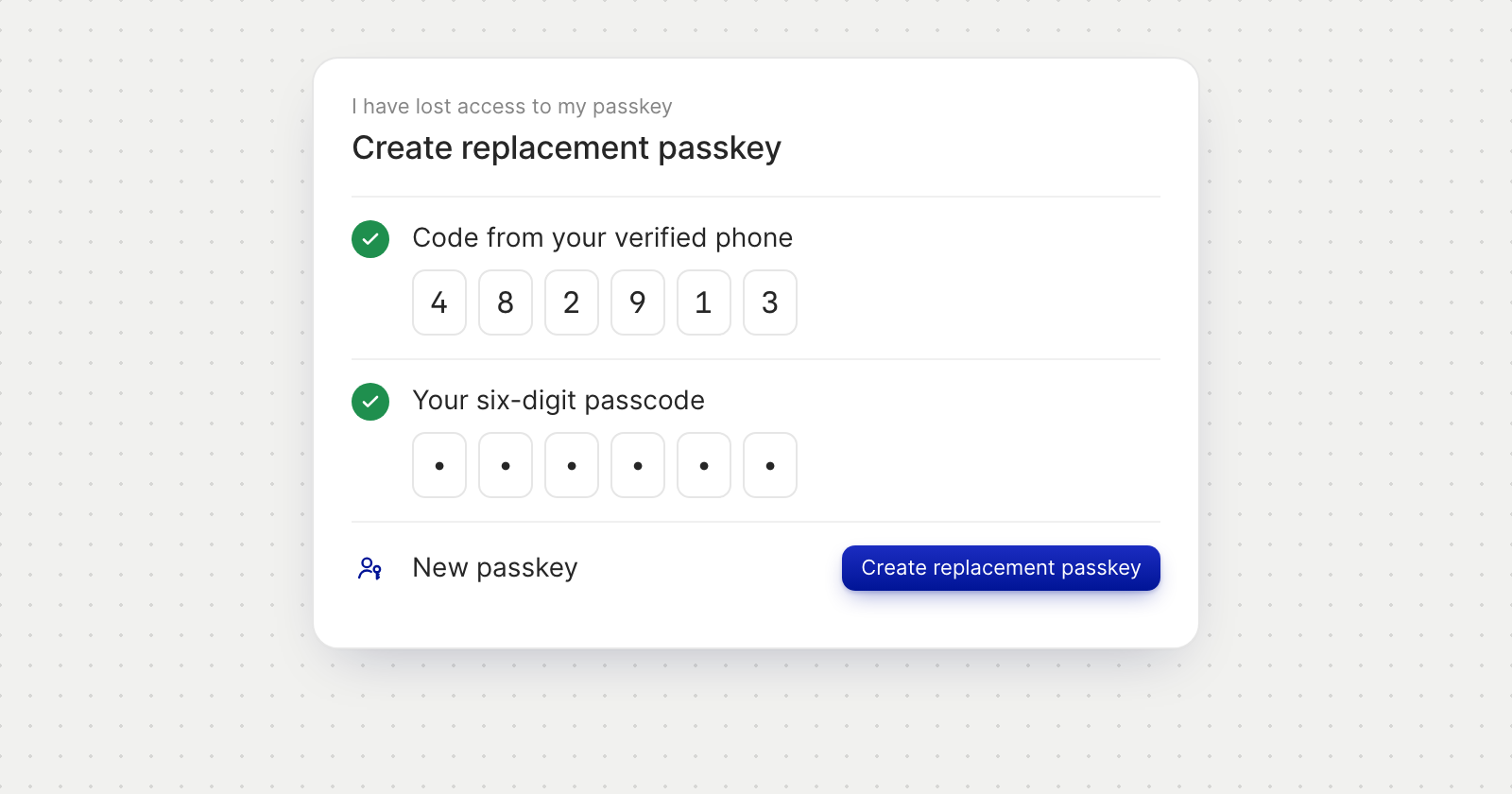
Replace a lost passkey
- Start from sign-in. Choose Having issues? Recover access, then I have lost access to my passkey.
- Confirm it's you. Enter the code sent to your verified phone and the six-digit passcode you already use.
- Create the new passkey. Choose Create replacement passkey and confirm on your device. The screen shows when the recovery expires, so finish before then.
- Sign in again. When you see Recovery complete, choose Sign in again and use your new passkey.
With a code from Concierge
If you have forgotten your passcode, or your account is locked after too many incorrect passcodes, contact Concierge at support@holyheld.com.
- Enter the code. On the locked screen, choose Recover account access. On the recovery screen, the same form opens from I have a recovery code from Concierge. Enter the Recovery reference and the Support recovery code, the two six-digit numbers Concierge gives you.
- Set up new security. Create a new passkey, then create and confirm a new six-digit passcode.
- Sign in again once the recovery is complete.
Good to know
- Passkey fine, just not here? If your passkey works but is not on this device, choose Sign in with my phone this time instead. Holyheld texts a code to your verified phone and asks for your passcode, and nothing on your account changes.
- 12 hours of restrictions. For 12 hours after a recovery, payments to new recipients and security changes are restricted. You can still pay recipients you already have, and the app shows when the restrictions end.
- Other sessions end. Replacing your passkey or passcode signs out your other sessions.
- One recovery at a time. A recovery in progress continues in the browser you started it in.