
Create an invoice
- Choose who you are billing. Select Vendor from your saved vendors, or Add New Vendor.
- Invoice Details. A number is reserved as soon as you start, from your prefix and in order. You can type your own, but a number can't be used twice. Add items yourself or with Add From Catalog, and set the currency (USD, EUR or USDC), dates, discount, tax percent and memo.
- Payment Details. Choose the account the invoice is paid into. Its details are printed on it. A USDC invoice is paid into one of your wallets.
- Review. Send Invoice emails it with the PDF attached, or Save as Draft keeps it unsent. An invoice dated in the future goes out on its issue date.
Repeat an invoice
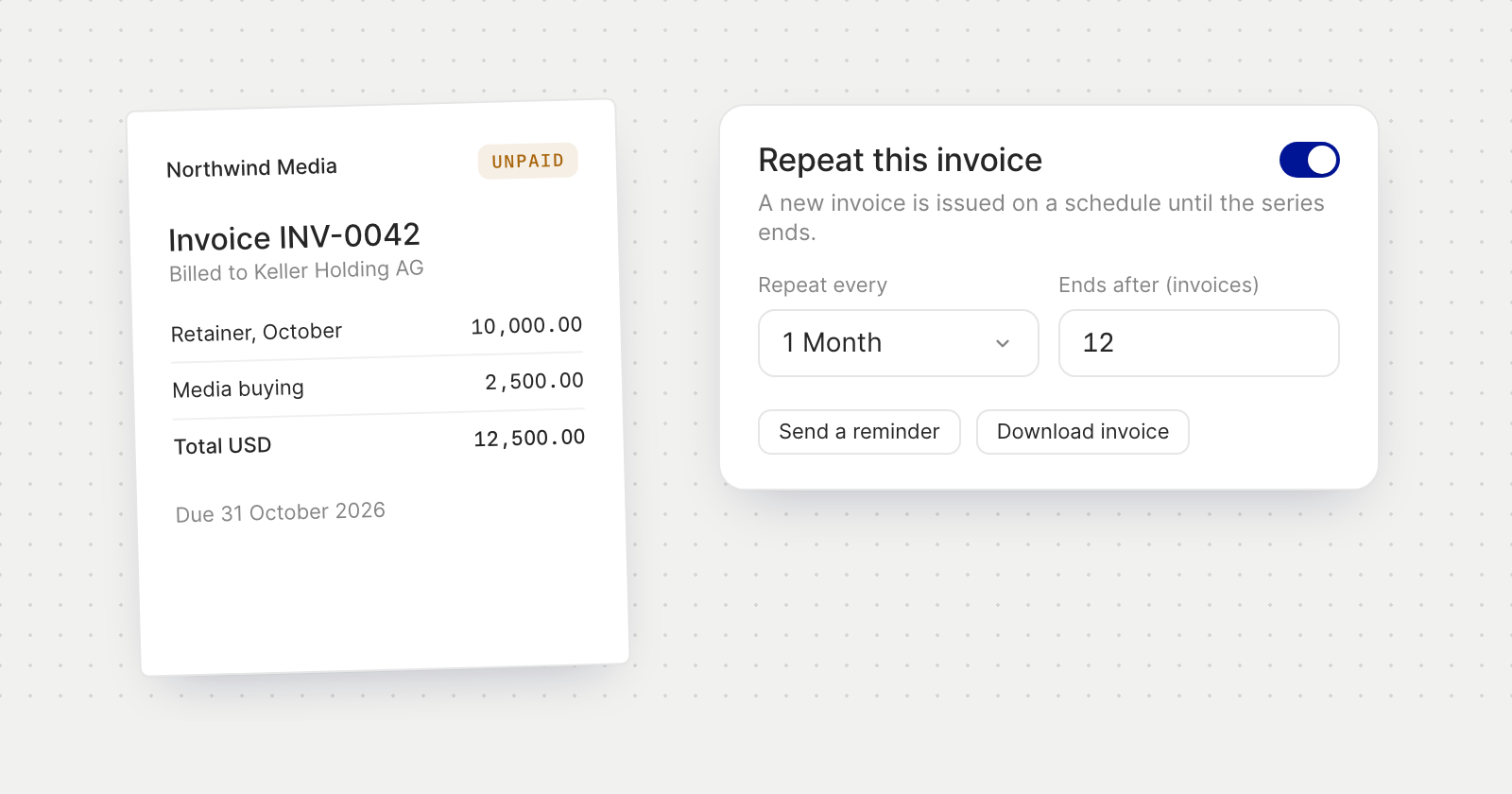
- Repeat this invoice issues a new invoice every so many days, weeks, months or years, until a date, after a number of invoices, or with no end.
- Recurring Invoices lists each series with its next invoice and how many it has issued. Skip an upcoming invoice, edit the series, or cancel it.
Track and follow up
- Statuses. Draft, Scheduled, Unpaid, Overdue, Paid or Voided, with Total outstanding above the list.
- Send Now issues a draft or scheduled invoice today and emails it. Mark as Sent issues it without the email, for one you delivered another way.
- Remind emails the vendor a payment reminder, once a day at most.
- Void an unpaid invoice, Duplicate one to start the next, or Download its PDF.
Make it yours
Invoice Settings has three tabs. Branding sets your logo and colours, or picks them up with Fetch from website. Catalog keeps the items you bill often. Invoice Defaults holds payment terms, default tax percent and memo, your number prefix and your tax / VAT ID.
Good to know
- Invoicing is part of business accounts.
- A vendor with no email address is sent nothing. The invoice is still created, and you can download it and send it yourself.
- Voiding can't be undone, and only drafts can be deleted.